A Keyboard-First To-Do List: Every Slaet Shortcut
A to-do list should be quicker than the thought it's catching. Every keyboard shortcut in Slaet, and the three worth learning first.
November 2026 · 3 min read
You're mid-sentence in a doc and remember you need to call the bank. Reaching for the mouse, finding the app, clicking Add, typing, clicking Save: by the time you're back, the sentence is gone too.
A to-do list should be quicker than the thought it's catching. Here's every keyboard shortcut in Slaet, and the habits that make them stick.
The whole list
| Press | To |
|---|---|
Esc | New tab to the full app, and back. In the app it first closes whatever is open. |
T | New task |
N | New note |
L | New list |
⌘K / Ctrl+K | Search tasks and notes |
⌘Z / Ctrl+Z | Undo |
Enter | Add the task you've typed |
⌘A / Ctrl+A | In a task list, select every task's text, to copy it somewhere |
T, N and L work anywhere in the app as long as you're not typing in a box. On Windows and Linux, ⌘ is Ctrl.
Esc is the one to learn first
Slaet has two places: the new tab, which shows you today, and the full app, which keeps the rest. Esc moves between them. Open a tab, press Esc, and you're in your lists and notes. Press Esc again and you're back on today.
Inside the app, Esc first closes whatever is open, like a task, a note or a menu. Press it again with nothing open and it takes you back to the new tab. You never need to find a close button.
⌘K finds anything
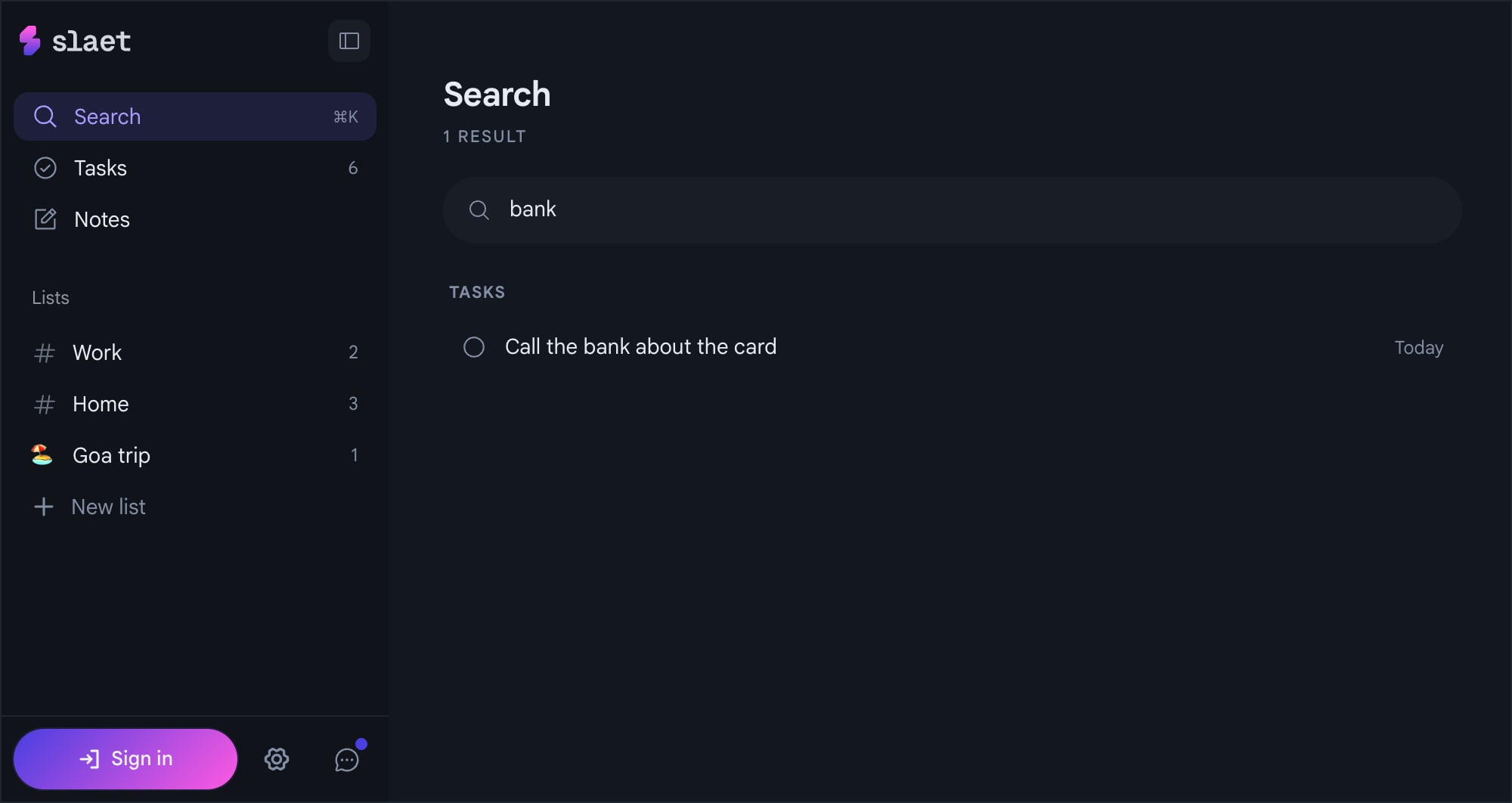
Search covers your tasks and notes together. Press ⌘K, type a word, and the matches show up as you go.
Type the date instead of picking it
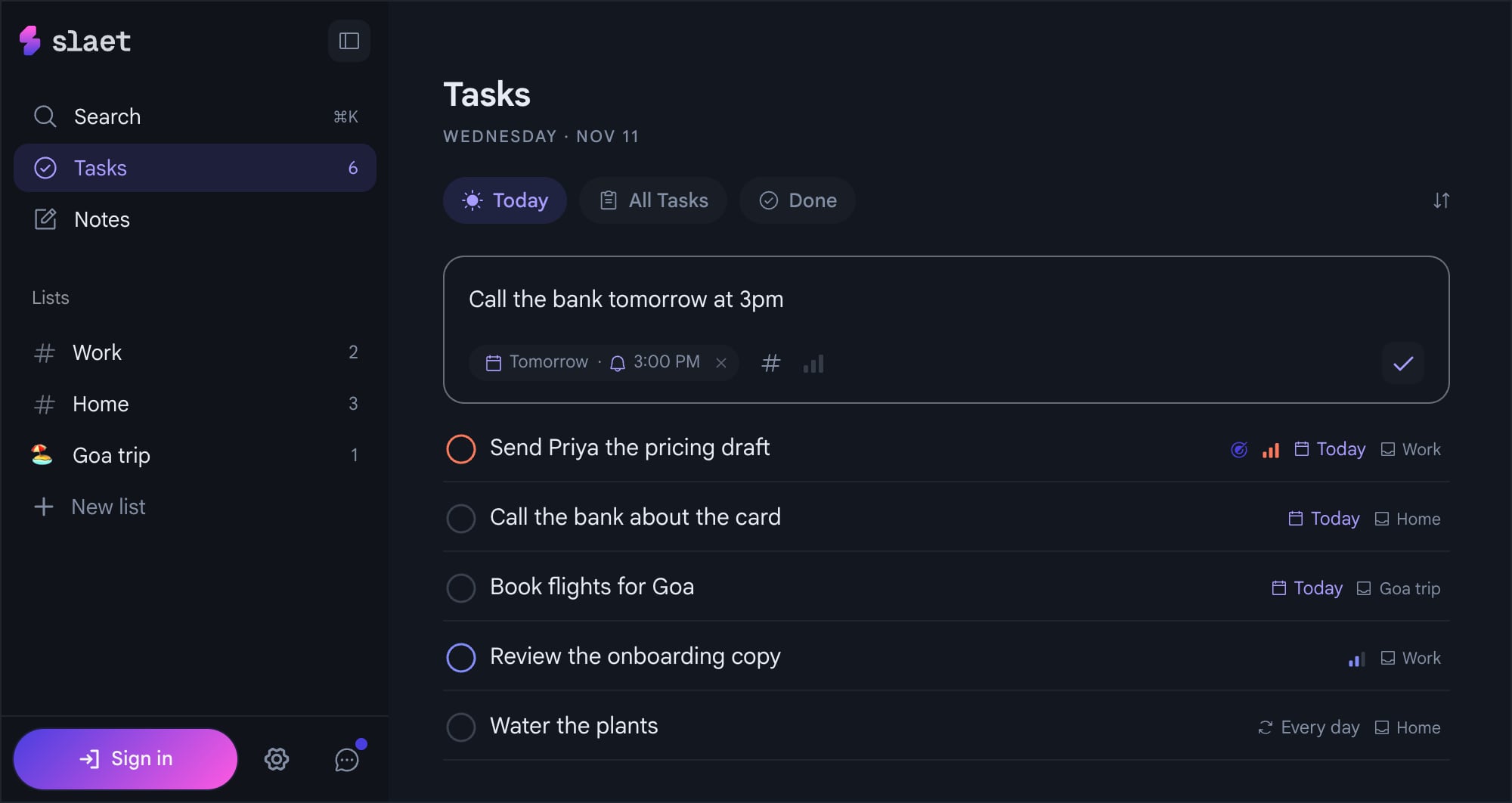
The fastest shortcut isn't a key. It's writing the task the way you'd say it. “Call the bank tomorrow at 3pm” becomes a task due tomorrow with a 3 PM reminder. “Gym every weekday at 7am” becomes a habit. No date picker.
How the reading works, and which phrases it understands, is in reminders in plain English. Repeats have their own post: daily habits on your new tab.
A one-week habit
Don't learn all eight. For one week, use only two: Esc to open the app, and T to add a task. Once those are automatic, add ⌘K. That's most of the speed, from three keys.
And if you write notes in the app, they take markdown as you type. More in markdown notes in your new tab.
Frequently asked questions
How do I search my tasks and notes in Slaet?
Press ⌘K on a Mac or Ctrl+K on Windows and Linux, from anywhere in the app, and start typing.
How do I switch between the new tab and the full app?
Press Esc. On the new tab it opens the full app. In the app, once nothing is open, Esc takes you back to the new tab.
Can I undo a mistake?
Yes. Press ⌘Z or Ctrl+Z to undo the last change to your tasks, like a delete or a move.
Why don't T, N and L work sometimes?
They only work when you're not typing. Inside a text box, a T is just a T. Click outside the box, or press Esc to leave it, and they work again.
Slaet for Chrome, Brave and Edge
A to-do list that keeps up with your keyboard.