How to Stop Forgetting Your To-Do List
Have you ever written down an important task, felt relieved that you would not forget it, and then completely forgotten to check the list?
Maybe you downloaded a productivity app on Monday, organized everything into neat categories, and felt like you had finally fixed your routine.
By Wednesday, the app was still installed.
You just were not opening it.
That is the problem most productivity tools do not talk about.
The issue is often not that you are bad at planning. It is not that you need more discipline. It is not even that your to-do list is poorly organized.
The real problem is that your to-do list is hidden.
And a hidden task is surprisingly easy to forget.
What if the solution was not another reminder, another app, or another complicated system? What if your tasks simply appeared in a place you already look at dozens of times a day?
For many people, that place is the browser's new-tab page.
Why do we forget to check our to-do lists?
Think about how most task apps work.
You remember something important, open the app, write it down, and return to whatever you were doing.
A few hours later, your day becomes busy. You reply to messages. You search for something online. You open more tabs. You attend a meeting. Someone calls you. A different task suddenly feels urgent.
The original task is still safely stored in the app.
But the app is closed.
So the task disappears from your attention.
This creates a strange situation. You did the responsible thing by writing the task down, but because you never saw it again, it still got forgotten.
The problem was not capturing the task.
The problem was bringing it back into view.
Checking your to-do list should not be another task
A common solution is to set a reminder to check your to-do list.
But think about what that means.
You have a task.
You put the task inside a to-do list.
Then you create another reminder telling you to open the to-do list.
At that point, the system is creating more work than the original task.
You should not need a reminder to use the tool that is supposed to help you remember things.
This is where the real shift happens.
Instead of asking, “How can I remember to open my productivity app?” ask a better question:
Where can I place my tasks so that I see them naturally?
The best productivity systems often do not depend on perfect memory. They change the environment around you.
For example, if you want to drink more water, placing a bottle on your desk may work better than relying on yourself to remember. If you want to practice guitar, leaving it visible in the room may work better than keeping it inside a case. If you want to remember your tasks, placing them somewhere you already look may work better than hiding them inside another app.
The new-tab page is already part of your routine
How many new tabs do you open during a normal workday?
You open one to search for something.
You open another to check a document.
You open one after reading an email.
You open one when starting a new task.
You may not even notice how often you do it.
That is exactly why the new-tab page can be useful.
You do not have to build a new habit around it. The habit already exists.
When your to-do list appears every time you open a new tab, your tasks return to your attention throughout the day.
Not through a loud notification.
Not through an alarm.
Not through another app asking for your attention.
They simply appear when you are already between activities.
This matters because people often forget tasks during transitions. You finish one thing, open a tab to begin another, and get distracted along the way. Seeing your task list at that moment can help you remember what you were actually trying to do.
A simple example
Imagine you need to send an invoice before 5 PM.
In the morning, you add “Send invoice to client” to a task app.
Then your day starts.
You answer emails. You work on a presentation. A meeting runs longer than expected. Someone sends you an urgent message.
At 4:45 PM, you suddenly remember the invoice.
The task app did not fail to store the task.
It failed to stay visible.
Now imagine the same task is shown every time you open a new tab.
You might see it at 10:30 AM while searching for a document.
You see it again at 1 PM before checking something online.
You see it again at 3:15 PM.
The task has several chances to return to your attention before it becomes urgent.
That is the difference between storing a task and keeping it visible.
Why complicated productivity systems often get abandoned
Many productivity apps start simple and slowly become complicated.
You create projects.
Then subprojects.
Then tags.
Then priorities.
Then filters.
Then different views for today, this week, upcoming, personal, and work.
All of these features can be useful.
But they can also create friction.
A small task such as “Call the dentist” starts to feel like something that needs to be categorized, scheduled, tagged, and organized correctly.
Eventually, you avoid adding tasks because using the system feels like work. Or you keep adding tasks but stop checking them because the list feels overwhelming.
This is why the best system is not always the most powerful one.
It is the one you can continue using without thinking too much about it. There is a reason this pattern repeats across almost every productivity app — the friction is usually what kills the habit, not a lack of willpower.
What a low-friction to-do list should do
A practical to-do list should make it easy to capture, see, and complete tasks.
It should let you add something quickly when the thought appears.
It should show your important tasks without forcing you to navigate through several screens.
It should help you remember context, such as a link, a note, or a deadline.
It should not require you to create an account before you can begin.
It should continue working even when you are offline.
Most importantly, it should be available at the moment you need it.
The goal is not to create the perfect productivity system.
The goal is to create a system that does not disappear from your life after three days.
Capture first, sort later
The most reliable habit here is also the simplest: when something lands in your head, write it down immediately, somewhere you trust, and get back to what you were doing. David Allen called this capture, and it is the foundation of Getting Things Done.
The point is not to organize, prioritize, or decide anything in the moment. It is to stop trusting your memory with things it was never good at holding. When everything is written down, the background hum of “don't forget to…” quiets and you can focus.
Capture only works if it is effortless. The moment an inbox demands a category, a due date, or a project before it accepts a note, you have added friction. A good inbox asks for nothing except the thought itself.
A simple loop keeps it trustworthy:
- When a thought arrives, type it and press enter. Do not stop to sort it.
- If there is context worth keeping, such as a name, a link, or the reason behind the task, add it underneath. Optional, never required.
- Once a day, skim the list. Delete what is done, flag what matters, and set a reminder on anything that needs to come back later.
That last step is the quiet half of GTD. An inbox you never empty stops being trustworthy, and captured items pile up and sink to the bottom.
Start with a smaller daily list
One reason people stop looking at their to-do lists is that the list becomes too long.
A list with 40 tasks does not feel helpful.
It feels like a record of everything you have failed to complete.
Try keeping your daily list smaller.
Ask yourself:
What are the three things that would make today feel productive?
The tasks should also be clear.
“Work on website” is vague.
“Rewrite the homepage headline” is easier to start.
“Handle finances” is vague.
“Send the pending invoice” is clear.
The clearer the task, the less energy it takes to begin.
Decide what to do next without overthinking
A short list still needs an answer to one question: what should I do next? The trap is treating every task as equal until proven otherwise. When ten things sit at the same level, your brain compares each against all the others, and you default to whatever is loudest, newest, or easiest.
The Eisenhower matrix sorts tasks as urgent or important. Urgent things demand attention now. Important things move you toward something that matters, urgent or not. A ringing phone is urgent but often unimportant. The work that changes your week is usually important and quietly non-urgent.
You do not need to draw the four-quadrant grid. For most days, one honest question does the job: does this task genuinely need to happen now, or does it just feel that way? Act on what truly can't wait first. Leave the rest in roughly the order you will get to it.
Common mistakes that cause overthinking:
- Ranking everything. A fully ordered list from one to twenty is fragile and slow to maintain. You only need the top one or two.
- Confusing urgent with important. Ask whether a real deadline or consequence is attached. Most “urgent” tasks are just recent.
- Flagging too much. If half your list is marked high-priority, nothing is. One to three at a time works best.
- Re-deciding constantly. Prioritize once, then trust it until something real changes. Re-sorting the list every hour is a form of procrastination.
If your attention scatters easily, this matters even more. There is more on staying organized when you can't focus on one thing.
Keep the context with the task
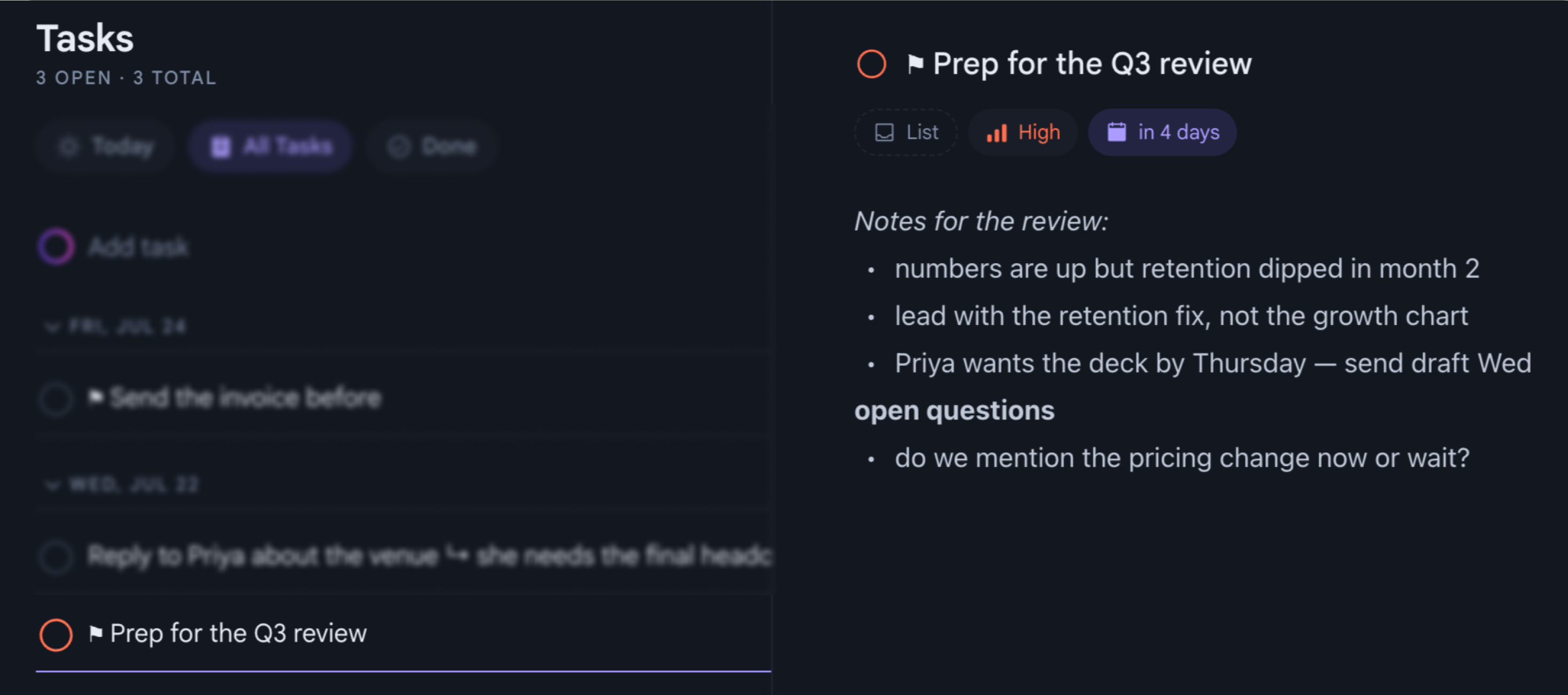
Sometimes a task title is not enough.
You may write “Reply to client,” but later forget what the reply was supposed to include.
Then you have to search through emails, messages, or documents just to remember the context.
A better task might include a short note:
“Reply to client about the revised timeline. Mention Friday delivery and confirm the new price.”
Now the next step is obvious.
This is especially useful for tasks you may not complete immediately. A few lines of context can save several minutes of searching later — keeping the note attached to the task instead of splitting the two across separate apps.
Use reminders only when time really matters
Reminders can be helpful, but too many reminders become background noise.
If every task creates a notification, you eventually stop paying attention to all of them.
Use reminders for tasks that genuinely need to happen at a specific time.
For example:
“Call the doctor at 10 AM.”
“Submit the form before 4 PM.”
“Join the client meeting at 2:30 PM.”
Other tasks may not need a notification if they remain visible throughout the day. Visibility can often be more useful than constant alerts.
Put your tasks where you already look
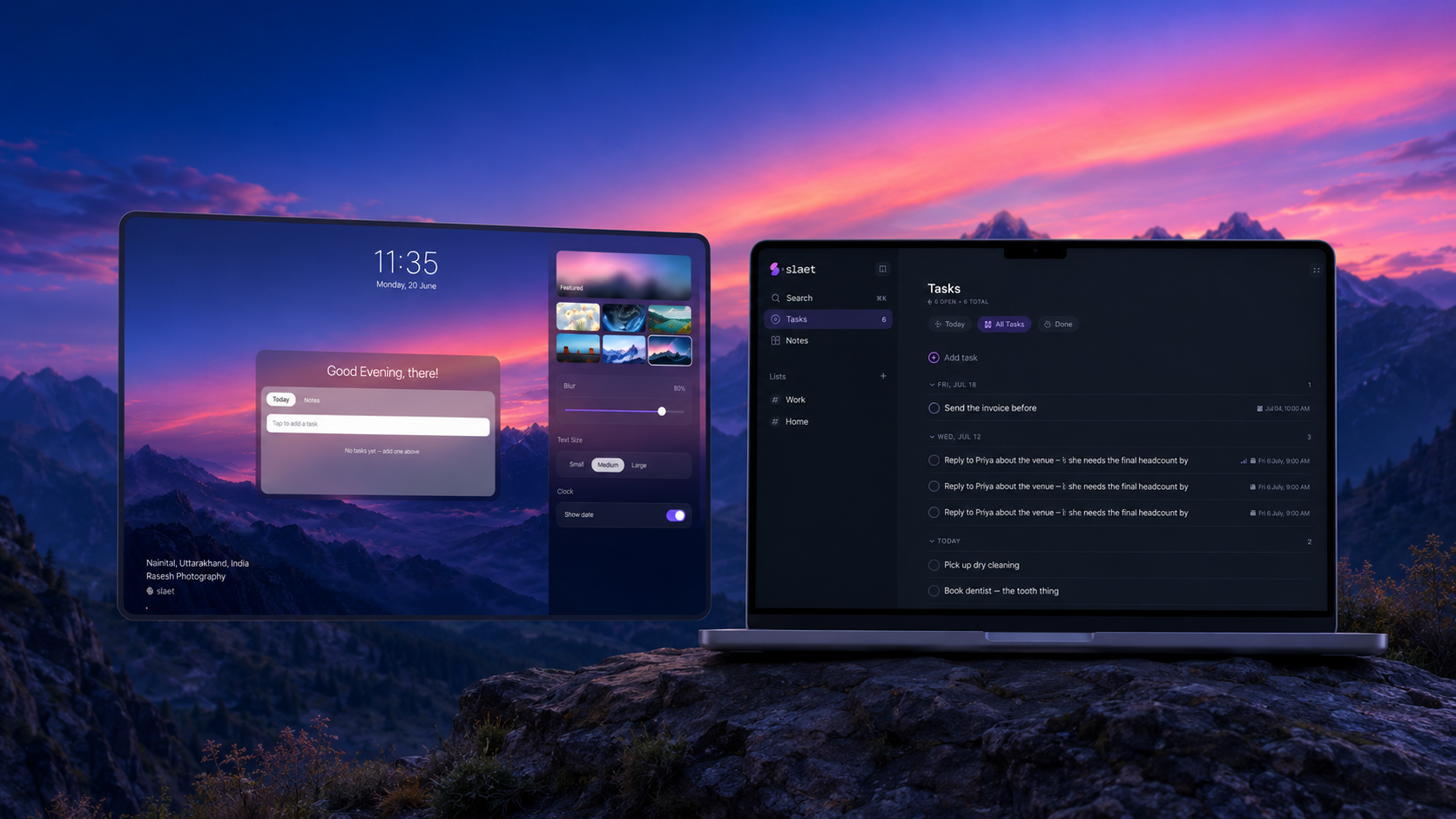
Slaet turns your Chrome new-tab page into a simple workspace for tasks and notes.
Every time you open a new tab, your list is already there.
You can quickly add something you just remembered.
You can check what you planned to do.
You can attach notes, add reminders, and keep important context close to the task.
You do not need to create an account to start. Your tasks and notes stay on your device and keep working fully offline, with no account required. An optional Google sign-in is there if you want your workspace to follow you across Chrome, Brave, and Edge.
Your preferred search engine remains available, so the new-tab page still works the way you expect. It simply becomes more useful.
The idea behind Slaet is simple:
You should not have to remember to open the tool that is supposed to help you remember.
Stop blaming yourself for forgetting the app
When you stop using a productivity app, it is easy to assume that you lack discipline.
You may tell yourself that you need to be more organized.
You may download another app and promise that this time will be different.
But sometimes the problem is not you.
Sometimes the tool asks you to remember one thing too many.
A useful productivity system should fit into your existing behavior. It should reduce friction instead of adding more steps. It should bring important tasks back into view instead of waiting silently behind an app icon.
The best to-do list may not be the one with the most features.
It may simply be the one you keep seeing.
Add Slaet to Chrome for free and make your tasks part of every new tab.
Frequently asked questions
Why do I keep forgetting to check my to-do list?
Most to-do lists remain hidden inside a separate app. Writing down a task helps you capture it, but the task can still be forgotten if the list does not return to your attention.
How can I remember to check my tasks?
Place your tasks somewhere that is already part of your routine. For people who work in a browser, showing tasks on the new-tab page removes the need to remember to open another app.
Can I put a to-do list on the Chrome new-tab page?
Yes. A new-tab extension can replace Chrome's standard new-tab screen with a page that includes tasks, notes, reminders, and search.
Will Slaet change my search engine?
No. Slaet lets you continue using your preferred search engine while adding tasks and notes to the rest of the new-tab page.
Do I need an account to use Slaet?
No. You can use Slaet locally without creating an account. Signing in is optional and can be used for syncing across Chrome, Brave, and Edge.
Is Slaet free?
Yes. Slaet is completely free — a Chrome extension and a web app at app.slaet.space, with no paid tier and no account required.
Slaet is a free Chrome extension and web app
Tasks that appear on every new tab, so you stop forgetting the list you already made.
Add Slaet to Chrome