How to Customize Your Chrome New Tab: Photo, Clock, Fonts and Glass
Chrome gives you a background and a color. Here is everything else you can change on your new tab, from a huge clock and a soft serif to clear or frosted glass.
November 2026 · 3 min read
Chrome's own customize panel gives you a background, a color theme and a row of shortcuts. That's about it. Which is fine, until you realize you look at this page more than any other page in your life.
Here's everything you can change on the Slaet new tab, and what each option is good for.
The photo
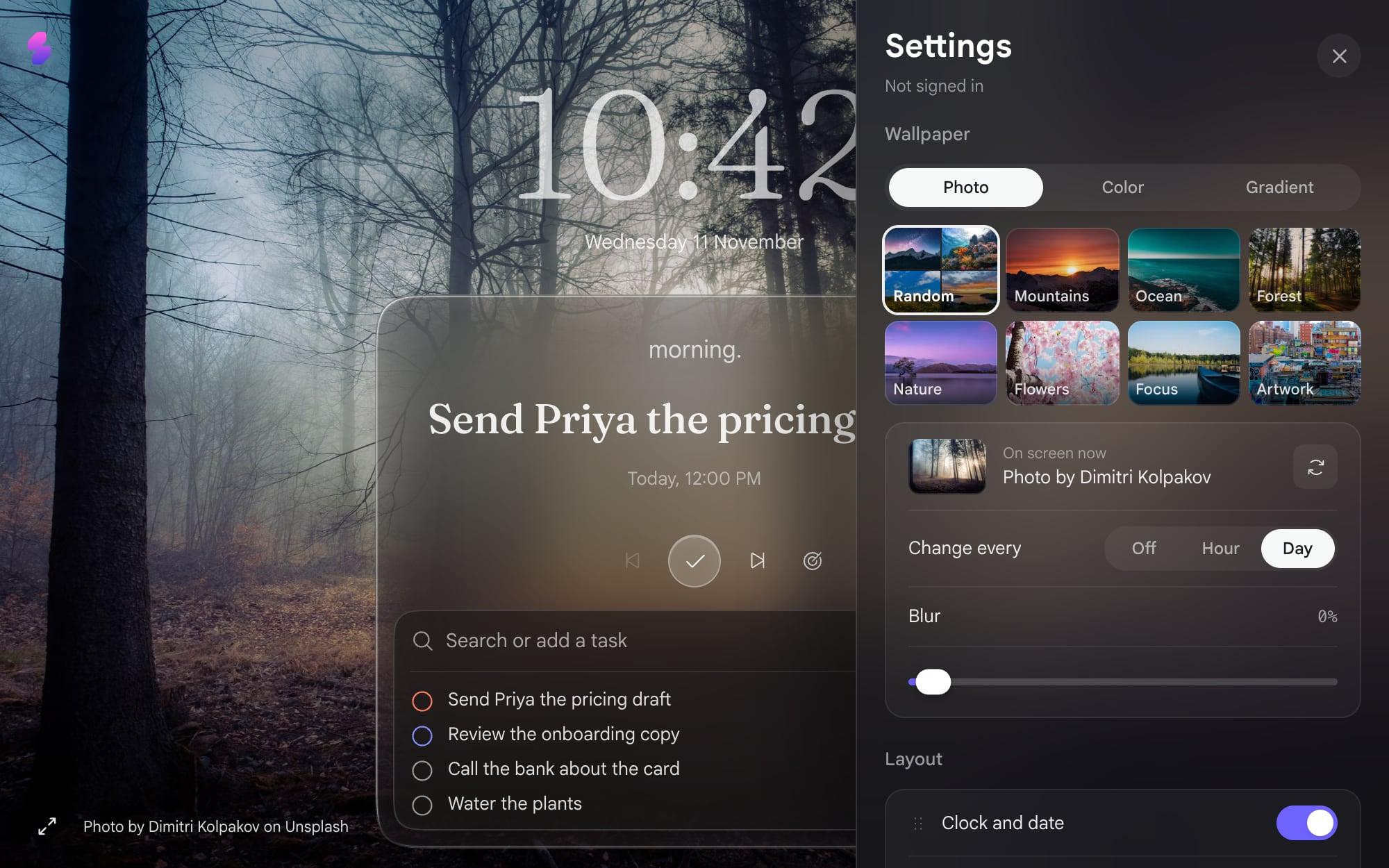
Open Settings from the sliders icon at the bottom right. The wallpaper comes first: a photo from a hand-picked set, a plain color, or a gradient. Photos come in groups, so you can stick to mountains, ocean, forest, nature, flowers, focus or artwork, or leave it on random.
Choose how often it changes: every day, every hour, or never. Then blur it as much as you like, which helps if a busy photo makes the text hard to read. The background has its own post with more detail: how to change and blur your new tab background.
The clock and the type
- Clock size: small, medium, large or huge. Huge is lovely on a big monitor.
- Show date: on or off, under the clock.
- Title font: the face for the clock, the Deep focus timer and the task on the card. Default matches the app, Clean is a geometric sans, Soft serif is warmer, and Technical is a crisp grotesk.
- Text size: small, medium or large, for the card and the date.
Clear or frosted glass
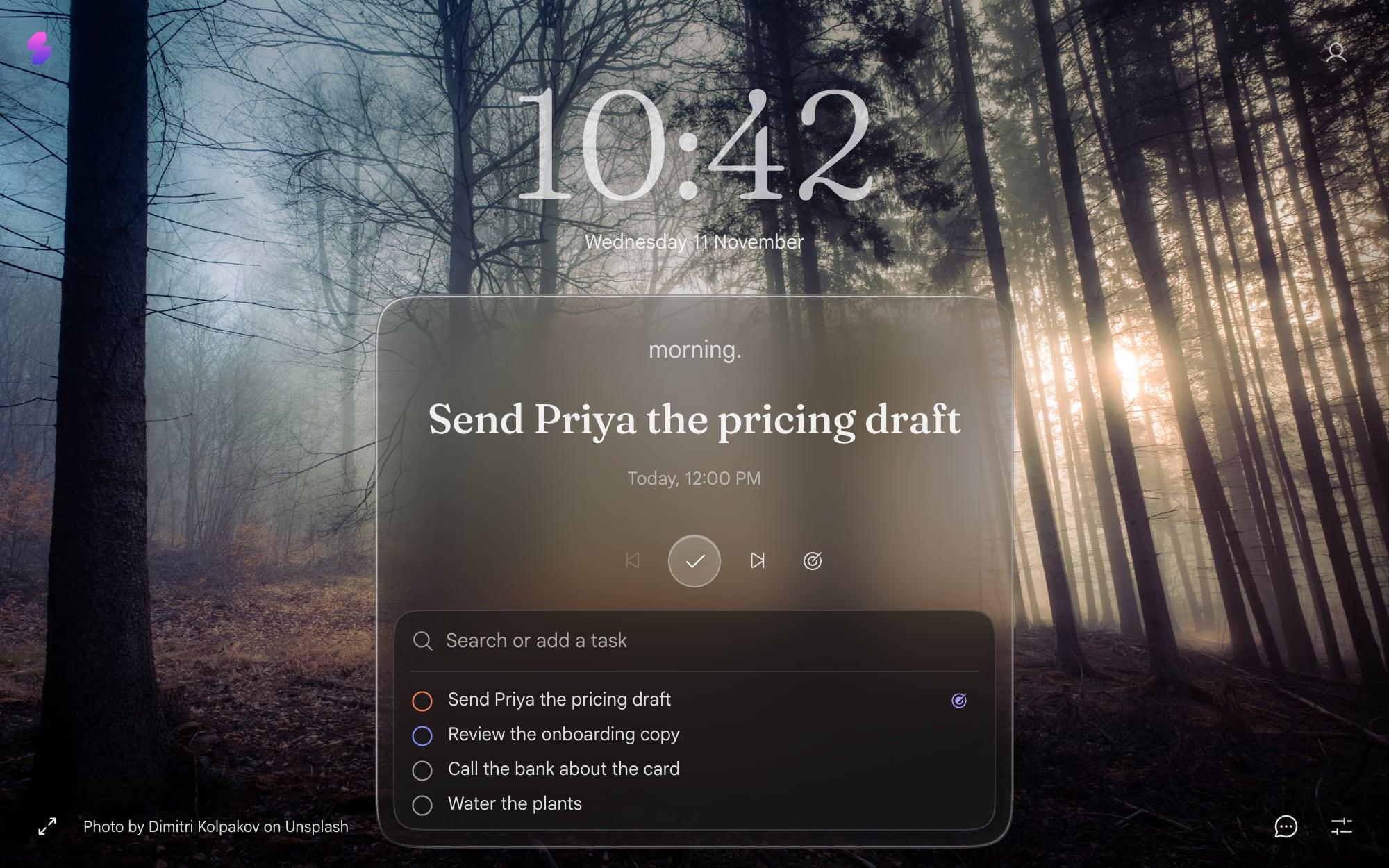
The card in the middle is glass. Clear glass is see-through, and its text turns dark on a light photo and white on a dark one, so it reads on anything. Frosted glass is darker and blurrier, with white text whatever the photo. Clear feels lighter. Frosted feels calmer. Try both for a day.
What's on the page
Under Layout you choose which blocks show: the clock and date, your tasks, a row of your most-visited sites, and the weather. Turn off what you don't use. A new tab with just the clock and one task is a perfectly good new tab.
The two optional blocks each have their own post: weather on your new tab and your most-visited sites, back.
Deep focus, and the edges of the screen
When you start a Deep focus session, the edges of the screen change too. Glass bends them like a lens, Blur softens them, and Off leaves them alone. It's a small thing that makes the session feel like a different room. The same settings set the session length (25, 50 or 90 minutes) and your daily focus goal.
The app itself
Press Esc to open the full app, then Settings, Appearance. You get light, dark or system mode, sixteen color palettes from Indigo to Lagoon, and seven fonts. Two worth knowing about: Atkinson Hyperlegible, designed for low vision, and JetBrains Mono, if you like everything to look like code.
Frequently asked questions
How do I customize my Chrome new tab?
Chrome's own page lets you change the background, the color and the shortcuts. For more, install a new tab extension. In Slaet you can change the photo, the clock size, the title font, the text size, clear or frosted glass, and which blocks show.
Can I make the clock bigger?
Yes. Slaet's clock comes in four sizes: small, medium, large and huge.
Is there a font for low vision?
Yes. In Slaet's Appearance settings you can switch the app to Atkinson Hyperlegible, a typeface built for low vision. There's also a text size setting on the new tab.
Can I use a plain color instead of a photo?
Yes. Pick Color or Gradient instead of Photo in the wallpaper settings.
Slaet for Chrome, Brave and Edge
A new tab that looks the way you want, with your day on it.